


ETV4K Setup on Your Smart TV
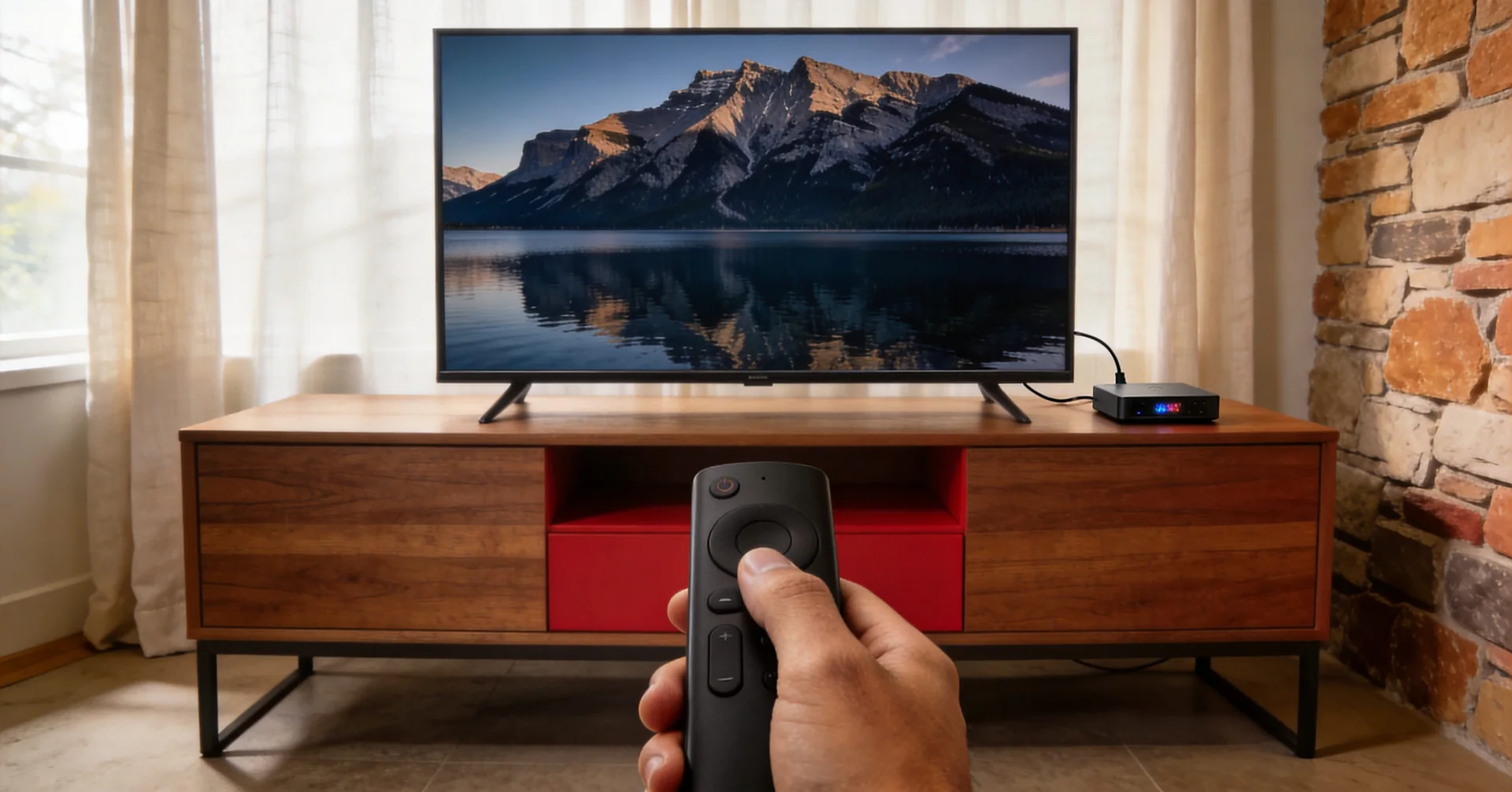
For compatible Android devices, use the ETV Pro APK download and installation guide to request an app link by verified email. Downloading the app does not activate a trial.
Setting up ETV4K or ETV 4K starts with your TV’s operating system. Choose the ETV Pro app for compatible Android devices, or ETV Pro Xtream for an Xtream-compatible player. Installation and sign-in steps differ. Content and channel availability can vary by product, region and time.
ETV Pro uses its app on compatible Android devices. ETV Pro Xtream can work through a supported player on Android, iOS, WebOS and other Smart TV systems. A TV box is not always needed; compatibility depends on the exact device and player.
1. Check your TV type
Look in your TV settings or manual for the operating system.
- If your TV is Android-based, the ETV Pro app may be suitable. Confirm support for the exact TV model and Android version.
- If your TV uses WebOS or another Smart TV system, ETV Pro Xtream may be suitable when a supported player is available.
- If you are unsure, confirm the device type before choosing a product.
Compatibility can vary by device model and player version. A Smart TV is not automatically compatible just because it has internet access.
2. Match the product and app
For a new trial, choose the product in your email and press the confirmation button on the page that opens. ETV Pro sends the Android app link; start its 3-day trial inside the app on an eligible device, without an activation code. Existing ordinary ETV customers should ask support for the app that matches their existing account.
For ETV Pro Xtream, confirmed requests receive a server URL, username and password when eligibility and account availability checks pass. Enter them only in a compatible player you trust and keep them private. Opening the email link alone does not issue an account.
Read more in Devices & Players and Account & Access.
3. Keep one device active
One account supports one active device at a time. You can move between compatible devices at different times. For example, you may watch on your TV today and use your phone later.
Stop playback before switching to another compatible device. Signing in on another device may disconnect the one already playing; one account cannot stream on two screens at once.
Your setup checklist
- I know my TV operating system.
- I have chosen the product that matches my device.
- I am using the matching app or a supported Xtream player.
- I have my access details ready, if required.
- I will use one active device at a time.
- I understand that channel availability and streaming quality can vary.
4. If playback buffers, narrow down the cause
First stop playback on any other device using the same account. Note whether you see an account error, a black screen or repeated pauses; these are different symptoms.
- Try a second channel in the same app. If only one channel fails, note its exact name and the time. This is a useful clue, not proof that your device or connection is faulty.
- Try a different streaming app on the same device and network. If both struggle, check the network before changing your ETV account.
- Confirm the device is on your intended Wi-Fi network. Pause other large downloads and, if your equipment supports it, compare a wired connection with Wi-Fi.
- Close and reopen the player, then restart the device. Check for app and system updates through the publisher or device settings.
For Google TV, Google’s playback troubleshooting guide explains the network, update and restart menus. Other TV systems use different menus.
5. Send support a useful playback report
Include your product, device model, operating system, player name and version, connection type, affected channels, time and time zone, and the exact error. Tell us which checks above changed the result. Keep passwords and full account credentials out of screenshots.
Do not factory-reset the device or erase the player’s data as your first step: you may lose settings and sign-in details. Ask support to review your playback report before taking that step.